Form Group
A form group is a set of form(s) sharing common elements. Editing a group allows you to modify these shared elements so that they are automatically applied to all forms in the group. This makes it easier to standardize and manage multiple forms simultaneously.
Structure of a form Group
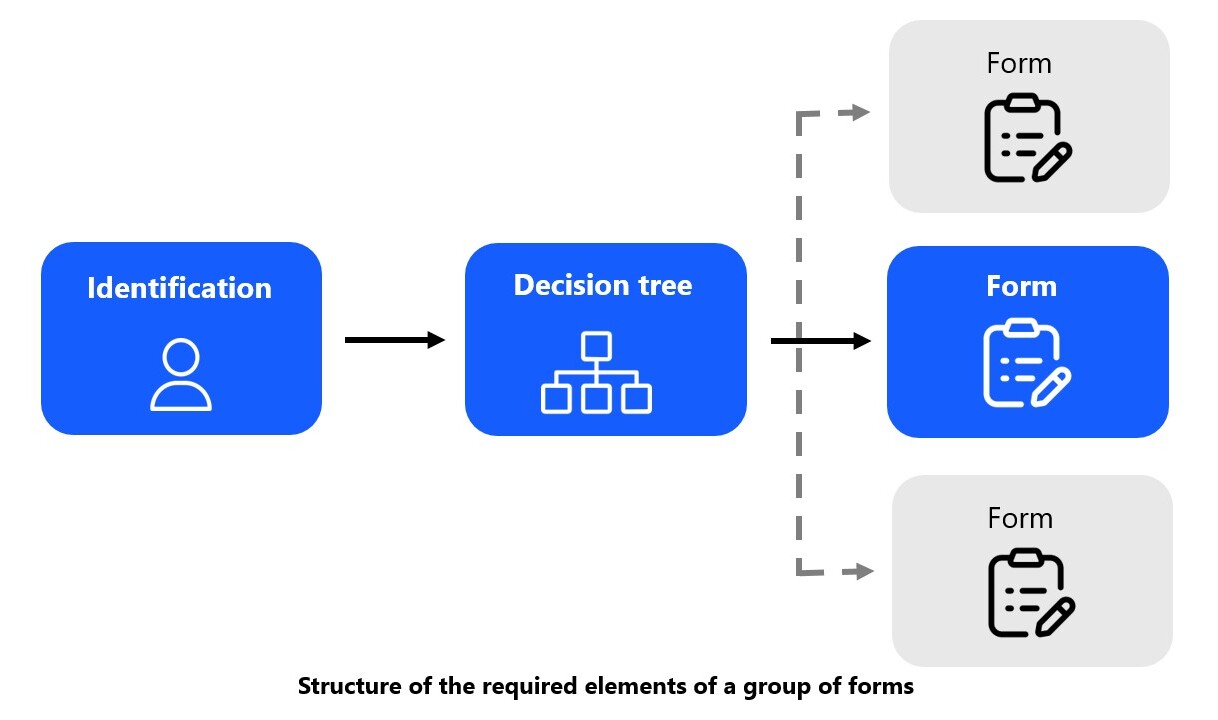
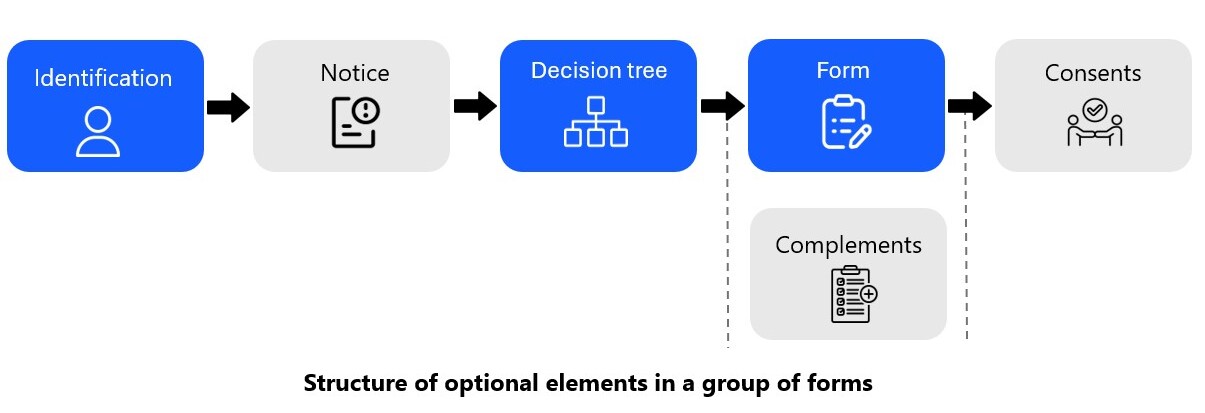
Form groups consist of a minimum set of required elements and can be enriched with optional elements to personalize the experience. All elements in a form group are customizable.
Required Elements
-
Identification
This section collects the patient’s personal information before they begin answering a form.
-
Decision Tree
The decision tree is a logical diagram that defines the navigation path between questions and forms within a group. It is presented as a flowchart where you connect forms via states that define logical links, creating personalized paths based on the reason for consultation or patient type.
Important : Any new form added to a group must be integrated into the decision tree to be accessible to patients.
-
Form(s)
The structure and editing of forms are detailed in the form section.
Each group must contain at least one form to be functional. A group can therefore contain :- A single form (illustrated in blue in the diagram Structure of Required Elements of a form Group)
- Multiple forms (illustrated in gray in the same diagram)
Optional Elements
-
Notices
This section displays important instructions, warnings, or contextual information that the patient must know before starting. It improves understanding and prepares the patient for the upcoming form.
-
Complements
Complements allow you to include additional questions common to the entire group, before or after the form.
-
Consent
This section allows you to add checkboxes at the end of the form that the patient must validate. These checkboxes are used to collect patient consent for various statements or specific information you define.
-
AI Summaries
This section is intended for users who want to go further. It allows you to add directives considered during the generation of notes by artificial intelligence, to customize the style, format, or content of the generated reports.
Adding a form Group
There are two ways to create a new group :
-
By AI : by specifying your medical specialty, additional details about your target patients (if applicable), and optionally basing it on other existing groups, the AI automatically generates a form group tailored to your needs.
-
Manually : create a form group from scratch or by copying an existing template, which you can then customize according to your needs.
Editing a form Group
To edit form groups, go to the "Editor" section. You will see a list of your form groups.
- To edit a group, click the pencil icon. It will take you to the form group editing page, where you can modify all elements presented in the Structure of a form Group section.
- To rename a group, click on "⋮" and select the "rename" option.