 MedAssistant
Find your way around the interface
Workspace, sidebar, search, switching organizations and What's new.
This documentation describes MedAssistant's new interface, the one that opens by default. What follows applies to all roles; each tool's pages give the details.
Choose your workspace
After you log in, the home screen asks you to choose the organization and role you want to work with.
- Resume reopens the last combination used on this device.
- The list shows each organization and your roles in it. A search appears once you have six organizations or more.
- With a single organization and a single role, this screen doesn't appear: the app opens directly.
The sidebar
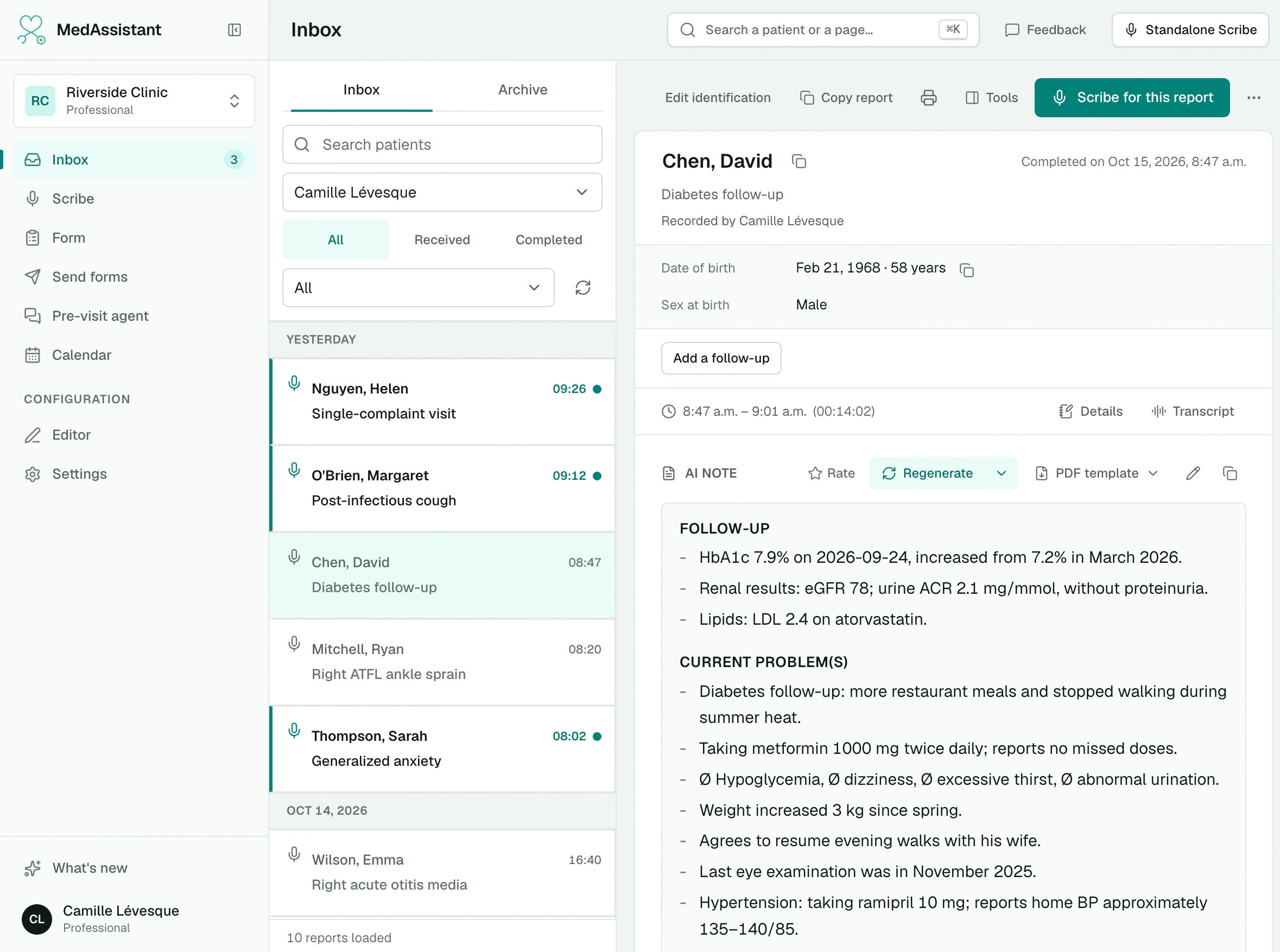
It groups the pages for your role. The Configuration section contains the settings.
| Role | Pages |
|---|---|
| Professional | Inbox, Scribe, Form, Send forms, Pre-visit agent, Calendar; under Configuration, Editor (depending on your permissions) and Settings |
| Manager | Organization, Users, Statistics, Billing, Help, Settings |
| Assistant | Home, Send forms, Form, Settings |
- The number next to Inbox shows your unread reports.
- Collapse menu keeps only the icons. This choice is remembered on the device.
- Professional: right-clicking Inbox or Scribe offers Set as default view, the page that opens when you arrive.
- Scribe only appears if your organization has access to at least one scribe.
The top bar
- Search (⌘ K on Mac, Ctrl K on Windows): type the name of a page to go there. With the Professional role, you can also type at least two letters of a patient's first or last name: choosing a result opens their report in the inbox.
- Feedback: send a question, a help request or a problem report to the MedAssistant team.
- Standalone Scribe (Professional): starts a note that doesn't depend on any report. See Record a visit.
Switch organization or role
The switcher at the top of the sidebar shows the current organization and role. Choose others without going back to the home screen. If the organization you choose gives you the same role, it's kept; otherwise, the app asks you to choose a role.
The account menu
At the bottom of the sidebar, your name opens the account menu:
- Settings: profile, preferences, security and Scribe settings. See Account settings.
- Referrals: your code, if your account is eligible. See Referrals.
- Language: French or English.
- Theme: System, Light or Dark.
- Send feedback.
- Back to the previous interface.
- Sign out.
What's new
The What's new entry, at the foot of the sidebar, presents recent features. Its counter shows what you haven't seen yet; opening the panel marks everything as read. Each new feature has its own illustrated article and, when useful, a button that takes you to the relevant page. Major new features also appear as a card in the sidebar until you read or dismiss them.
Just below, the Documentation entry opens this documentation in a new tab.
Go back to the previous interface
The previous interface remains available during the transition:
- to go back to it, choose Back to the previous interface in the account menu;
- to return to the new one, choose Try the new interface in the menu of the previous interface, or turn on New interface in Settings › Preferences › Interface.
Some features only exist in the new interface, including the calendar, note preferences and What's new.