 MedAssistant
Record a visit
Prepare the recording, start or import an audio file, then generate the note.
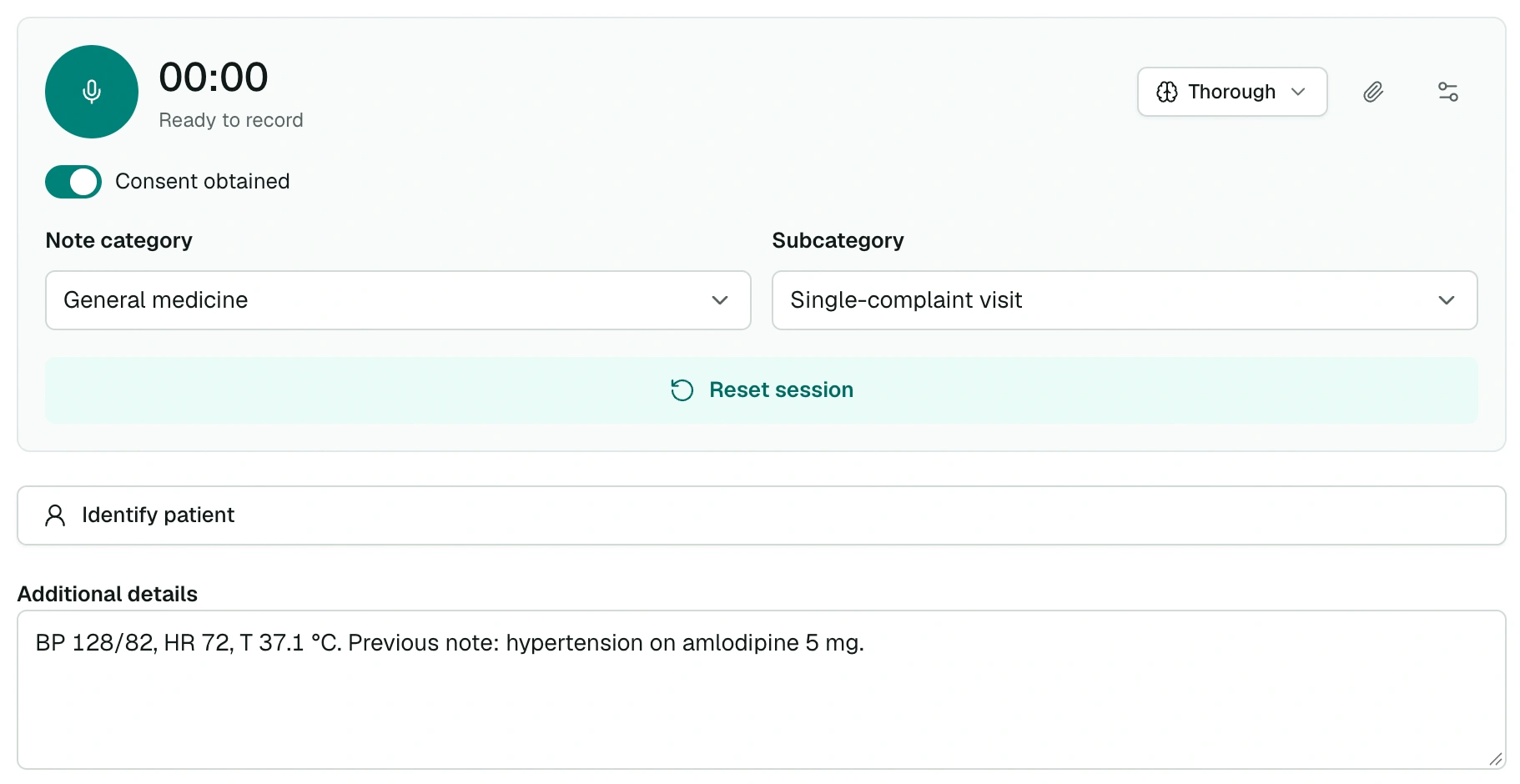
Before you start
Open the Scribe
Choose Scribe in the sidebar, or Standalone Scribe in the top bar. The header shows Standalone recording · No linked report. For a note linked to a questionnaire or an agent report, open that report instead and choose Scribe for this report.
Choose the category
Select the Note category, then the Subcategory. They determine the structure of the note. The last category used is preselected, and a category with only one subcategory selects it automatically.
To dictate your observations, choose the Dictation category and one of its subcategories, for example Summary or Bullet points.
You can also choose the category during the recording: it is only required to generate the note.
Indicate consent
Turn on Consent obtained if the patient consented to the visit being recorded. This choice determines the text added at the bottom of the note when you copy it (see Scribe settings) and is shown on the report.
Obtain the patient's free and informed consent before recording a conversation with them. A dictation of your own observations only records you.
Add context (optional)
- Additional details: vital signs, observations, a previous note or any detail the conversation does not contain. The Scribe takes it into account in the note.
- Attachments: the paperclip adds photos or PDFs (results, referral letter). See Attachments and diagrams.
- Identify patient: first name, last name, health card number and other information, before or after the recording. See Identify the patient.
During the recording
- The round Start recording button starts the timer. The first time, allow microphone access in the browser.
- The bars next to the timer show the microphone level. If no sound is picked up for a few seconds, MedAssistant warns you: check that the right microphone is selected and that it is not muted.
- Pause and Resume stop and restart the recording without losing anything.
- The mode button, next to the timer, changes the writing mode for this recording only.
- The gear icon opens Scribe settings: default mode, Note language and Identify speakers. See Scribe settings.
Leaving the page
The Scribe warns you if you leave the page during a recording: audio that has not been sent yet would be lost. To look at another report, use the inbox without closing the Scribe.
Record a video call
On a computer, in Chrome or Edge, the Scribe can also record a remote visit held in a browser tab (Teams, Zoom, Google Meet…).
- Before you start, open the source menu next to the timer (Microphone by default) and choose Video call.
- Choose Start recording. The browser asks what to share: choose the meeting tab and keep Also share tab audio turned on.
- The Scribe records the tab audio (the other participants) and your microphone (your voice) together. The rest works as in person.
- Wear headphones: without them, your microphone also picks up the meeting sound.
- If sharing stops during the recording, you can still generate the note from the audio already recorded, or cancel.
- The Teams or Zoom apps installed on the computer cannot be recorded this way: open the meeting in the browser.
- In Firefox and Safari, Video call is not available. On phones and tablets, the Scribe records the microphone only.
Let participants know they are being recorded and obtain their consent before you start, as in person.
Import an audio file
For a visit already recorded elsewhere (voice recorder, recording app, meeting video), import the file instead of recording.
- Before you start, open the source menu next to the timer (Microphone by default), choose Import an audio file…, then the file on your device.
- The Scribe reads its length, then uploads it right away. During the upload, choose the category and add context as for a recording.
- Once File uploaded is shown, choose Generate note. The rest is the same: Transcription, then AI note.
- Accepted formats: MP3, M4A, MP4, AAC, WAV, WebM, OGG, Opus and FLAC. From a video, only the audio is kept.
- The file must last from 5 seconds to 1 h 59 min and weigh at most 200 MB. A long WAV file can exceed this size: convert it to MP3 or M4A first.
- If the browser cannot read the file, the Scribe refuses it before any upload.
The patient's consent also applies to a recording made elsewhere: turn on Consent obtained only if they consented to that recording.
Finish and generate the note
Choose Finish and generate note, during the recording or after a pause. The Scribe then shows three steps: Audio upload, Transcription, then AI note. The note appears on its own when it is ready; you can also find it in the inbox.
No need to wait for the note before seeing the next patient: during transcription and generation, Record the next patient gets the Scribe ready for a new recording. The previous note keeps generating and arrives in the inbox.
To start over, Reset session offers to Finish and send (generate the note from what was recorded), Discard recording (stop without sending the rest) or Continue recording.
Limits
| Minimum length | 5 seconds |
| Maximum length | 1 h 59 min per recording. Beyond that, finish and add a follow-up. |
| Imported file | 200 MB at most |
| Attachments | 10 files per recording (see Attachments) |
If the upload fails
- Retry audio upload restarts the upload; MedAssistant already makes three automatic attempts.
- If the upload still fails, Download retained audio saves the audio on your device. Write to us: we can help you recover it.
- An imported file the Scribe cannot read shows the cause; import it again after converting it to MP3.
- If processing takes more than five minutes, Check processing status queries the server. The note may also have already arrived in the inbox.
- An interrupted recording (browser closed, network outage) stays in the inbox with Generation not completed. See Follow-ups and interrupted recordings.