 MedAssistant
Attachments and diagrams
Attach photos, PDFs or an annotated diagram; the Scribe reads them along with the transcript.
Attach photos (a wound, a paper questionnaire, a printed result), PDFs or a diagram you annotate to a recording. The Scribe reads them along with the transcript to write the note, and you choose which files it uses.
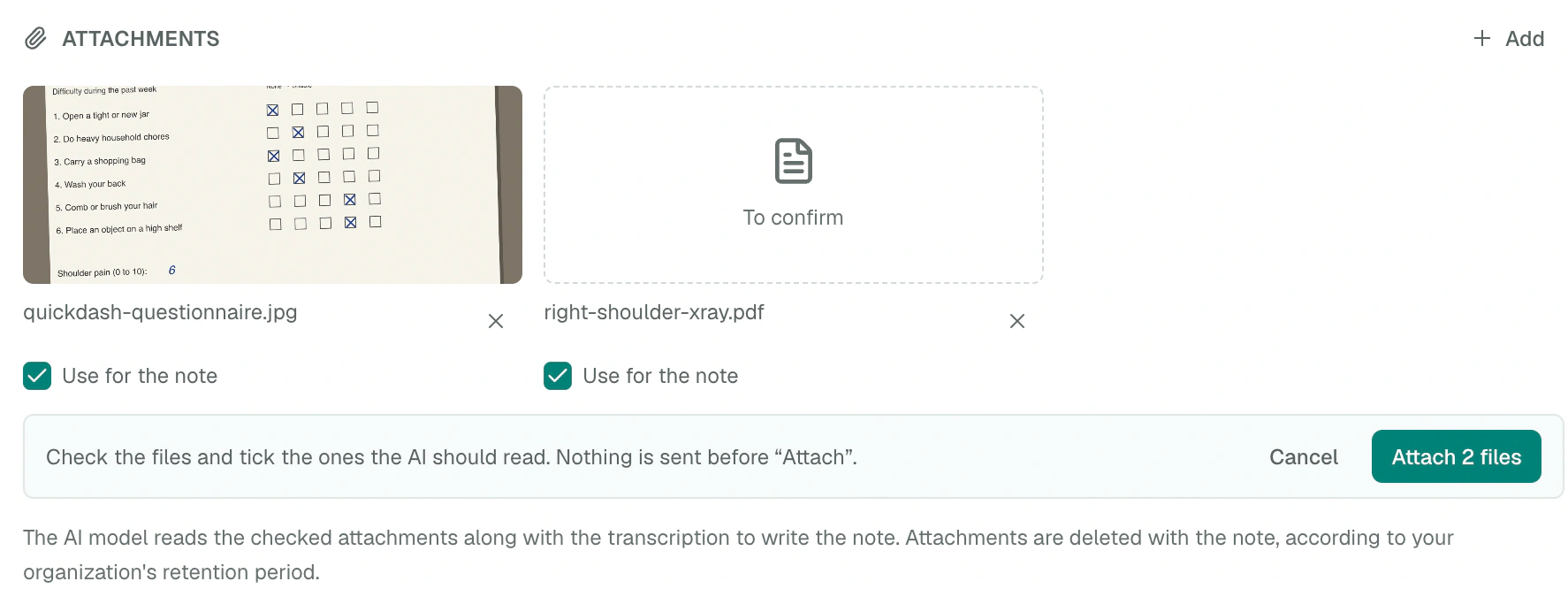
Attach a file
Before or during the recording, click the paperclip next to the timer. After the note, the paperclip is in the note header.
Add your files with Add files, or drag them into the window. iPhone HEIC photos are converted automatically.
Check the files and tick the ones the Scribe should read.
Click Attach: nothing is sent before that.
Files attached before you start are sent with the recording, and Finish and generate note waits for uploads to finish before writing the note.
What the Scribe does with them
Checked files are sources for the note, just like the transcript. The Scribe only reports what is legible or visible in the file, without extrapolating: a blurry photo or illegible handwriting won't be interpreted.

Change the selection
Every file is checked by default, under Use for the note. Unchecked, it stays in the record, but the Scribe doesn't read it.
If you add, check or uncheck a file after the note, a banner tells you: Regenerate note applies the new selection.
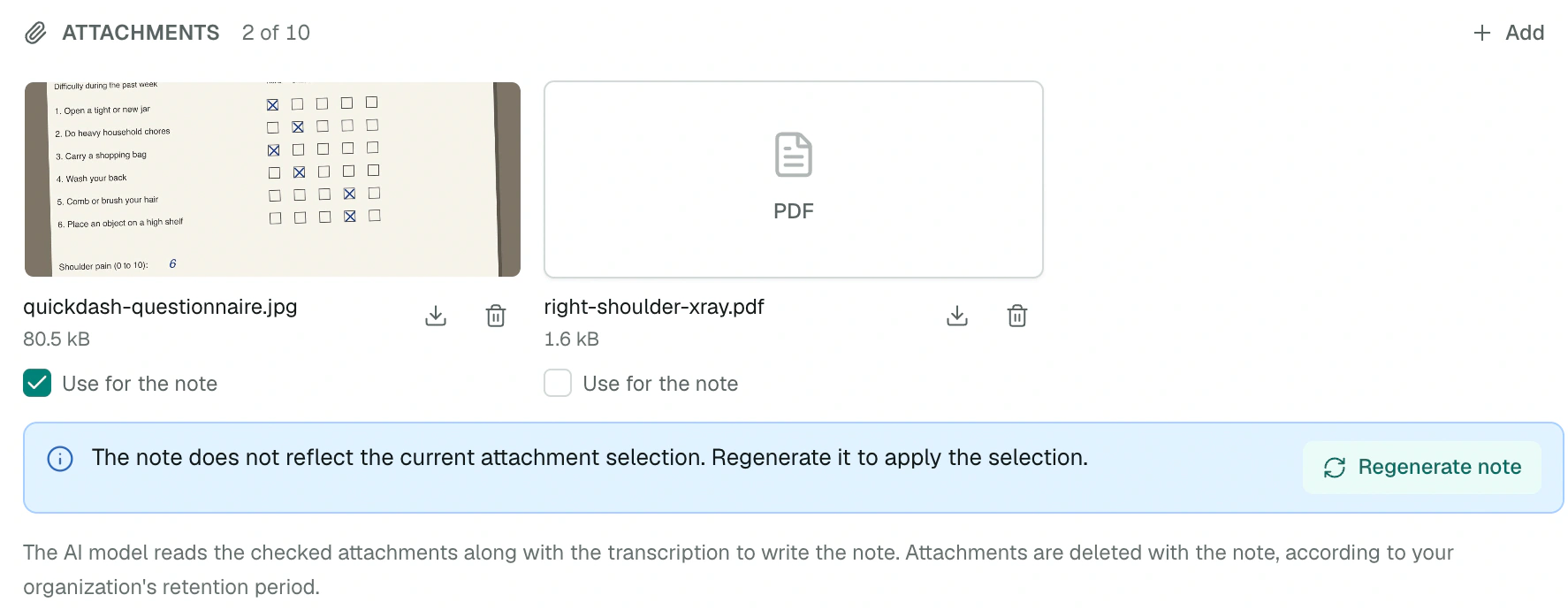
In the report
Each recording has its own Attachments section, between the note and the transcript:
- click a photo to open it in the viewer, where ← and → move from one photo to the next;
- a PDF opens in a new tab;
- every file downloads under its original name.
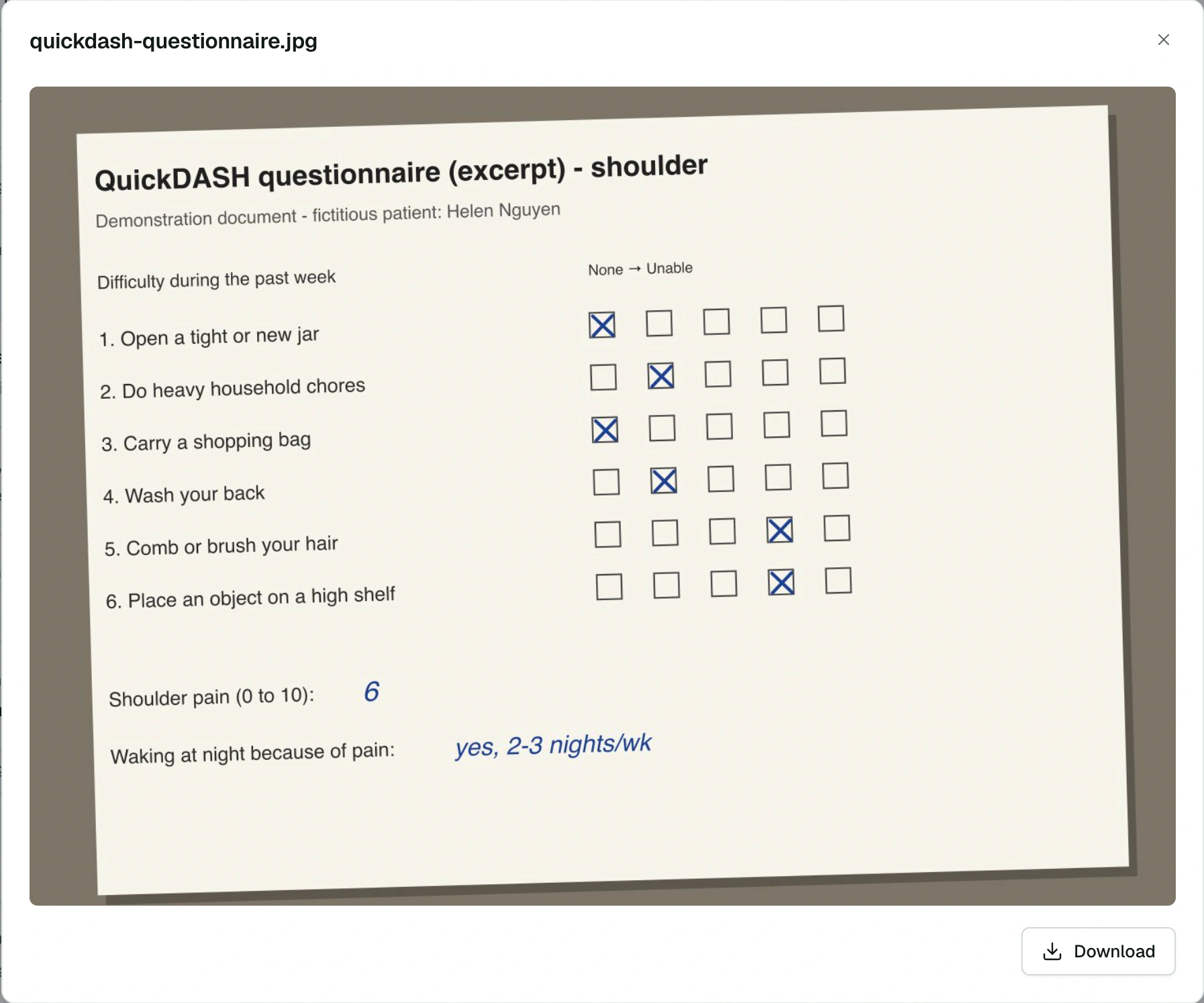
Only the person who made the recording can add, check or delete its files. Colleagues with access to the report can view and download them.
Formats and limits
| Formats | JPEG, PNG, HEIC, PDF |
| Number | 10 files per recording |
| Size | 20 MB per file |
| PDFs read | 15 MB of checked PDFs per recording |
Attachments are deleted with the note, according to your organization's data retention.
Annotate a diagram
The Diagram button, in the attachments window or in the report's Attachments section, opens an anatomical diagram to annotate. It appears when diagrams are available for your organization's professions.
Choose a diagram from the list.
Draw with the tools:
- Pen, in Red, Blue, Green or Black, with a Fine line or Thick line;
- Numbered marker, to point to an area;
- Eraser and Clear all;
- Move the image, and zoom (pinch or Ctrl + scroll wheel, up to 8 times).
Undo and redo correct your last strokes.
Under Marker notes, add a note of up to 80 characters for each marker if needed.
Choose Attach. The diagram is added to the attachments as an image, with its marker notes ("Marker 1: …"), and the Scribe reads it like the other files.