 MedAssistant
Review and use the note
Read, edit, regenerate, rate and copy the note; create a hospital PDF form.
When the note is ready, it appears in the Scribe and in the report in the inbox. The report brings together, in order: the note, the Additional details, the Attachments and the Transcript.
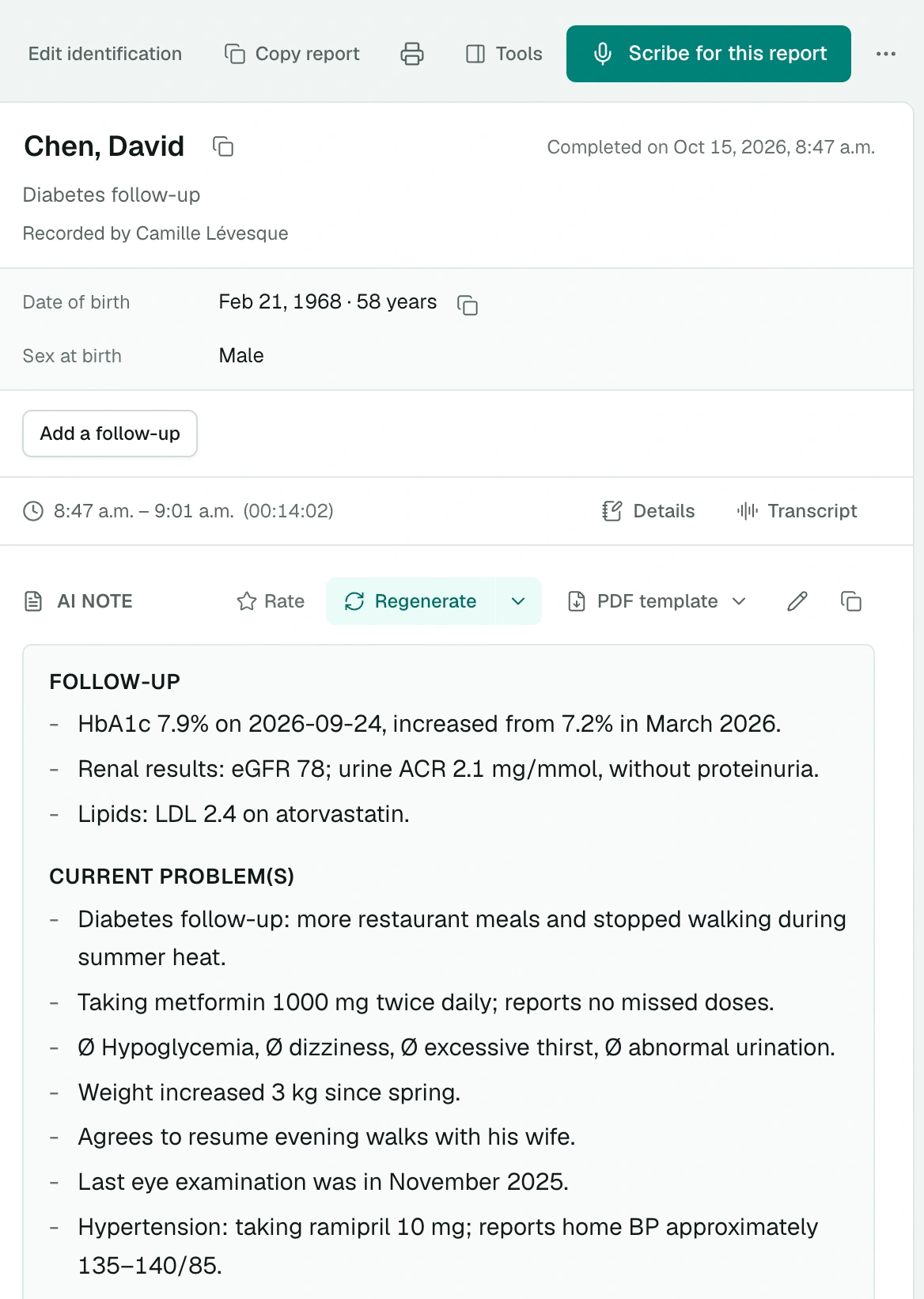
Read through the note
- The header shows the time and length of the recording.
- With Auto mode, a badge shows the chosen mode and its reason.
- The Transcript, at the bottom of the report, contains everything that was said. Open it to check a passage; Copy transcription copies it in full. Only the person who made the recording can view it.
Always read the note before using it. It can contain errors or leave out something from the conversation.
Edit the note
Click the Edit note pencil, or click directly in the text where you want to make a correction. Save your changes. The edited note is the one you copy and the one that follow-ups reread.
You can also correct the Additional details (up to 2,000 characters): they will be used at the next regeneration.
Regenerate the note
Regenerate rewrites the note from the same recording. The arrow next to it offers:
- Regenerate in fast mode or Regenerate in thorough mode;
- Regenerate in another category, if the chosen category was not the right one.
Also regenerate after changing your note preferences, adding an attachment or correcting the details.
Each regeneration creates a new version. Browse them with Previous version and Next version.
| Rule | |
|---|---|
| Number of notes | 10 per recording, including the first |
| Who can regenerate | The person who made the recording |
| After retention | Once the transcript is deleted according to data retention, the note can no longer be regenerated |
Rate the note
Rate gives the note one to five stars, with an optional comment. Your ratings help us improve the scribes. Do not write any patient information in the comment.
Copy the note into your EMR
Copy note copies the note and adds your end-of-note text at the end, based on consent (see Scribe settings). Then paste it into your electronic medical record.
In the report, Copy report copies everything; the print icon prints the report, and Download PDF, in the ⋯ menu, saves it as a PDF.
Fill in a hospital PDF form
PDF template prepares a hospital form prefilled with the note, your name, your practice location and your licence number:
- Evolution (DT9100);
- Emergency (DT9056);
- Medical consultation (DT9040D);
- External consultation (BM020).
Choose the form, then Create PDF. Check the preview, then Download PDF. Missing a form? Write to us.
Edit the consultation reason
The Scribe writes a consultation reason, in French and in English, which serves as a label in the inbox. To correct it, open the report's ⋯ menu and choose Edit consultation reason.
Delete a recording
In a report with several recordings, Delete this recording removes that recording and its notes. To delete the whole report, use Delete in the ⋯ menu or right-click it in the inbox. These deletions are permanent.
Who sees what
Other professionals in the organization see your note in the inbox, but only the person who made the recording can edit it, regenerate it, add a follow-up or read the transcript.