 MedAssistant
Note preferences
Set the length, style and abbreviations of your notes, section by section, and add your own instructions.
The Scribe can write the way you do. Set the length, style and abbreviations of your notes, section by section for some scribes, and add your own instructions. Your settings change the form of the note, never the facts.
Where to find them
Settings › Note preferences. From the Scribe, the Note preferences link, at the bottom of the Scribe settings window, opens them in a new tab without interrupting the recording.
The Overview summarizes what each scribe will apply to your next notes; choose a row to change it.
For all your scribes or just one
The left column starts with All my scribes, then lists your scribes. A setting chosen for a scribe replaces the one from All my scribes. Each setting shows where its choice comes from: Default, Like “All my scribes” or Customized.
- Copy from… takes the settings of another scribe.
- Remove all my choices goes back to the default settings.
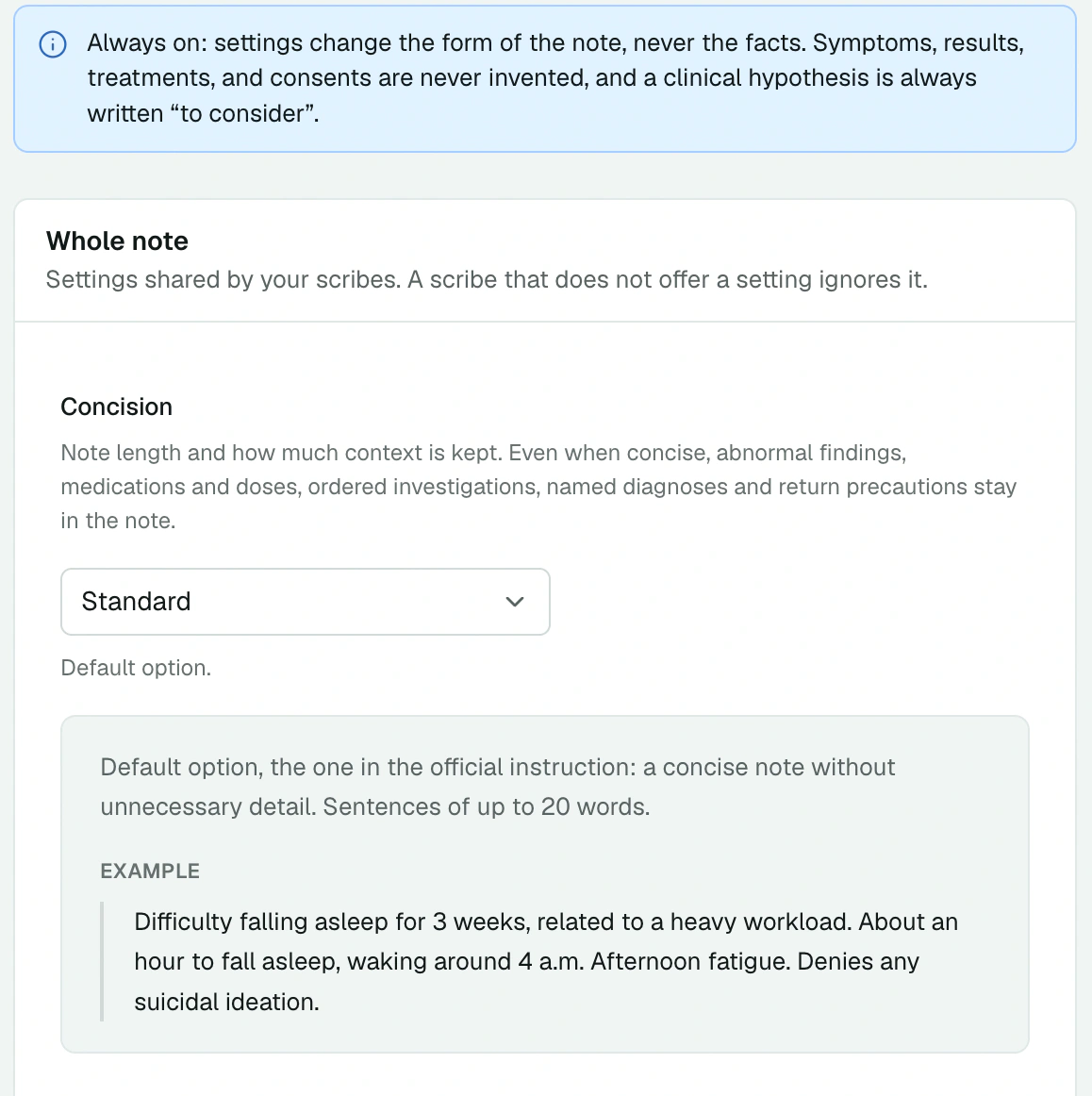
Whole-note settings
- Concision: from Detailed to Very concise. Even in a concise version, abnormal results, medications and their doses, ordered tests, named diagnoses and return instructions stay in the note.
- Writing style: Standard, Full sentences or Telegraphic.
- Abbreviations: template abbreviations, common abbreviations (HTN, T2DM, COPD…) or none. Medication names are never abbreviated.
Each option comes with a sample of text. On a large screen, the preview can Highlight differences between two options.
Section by section
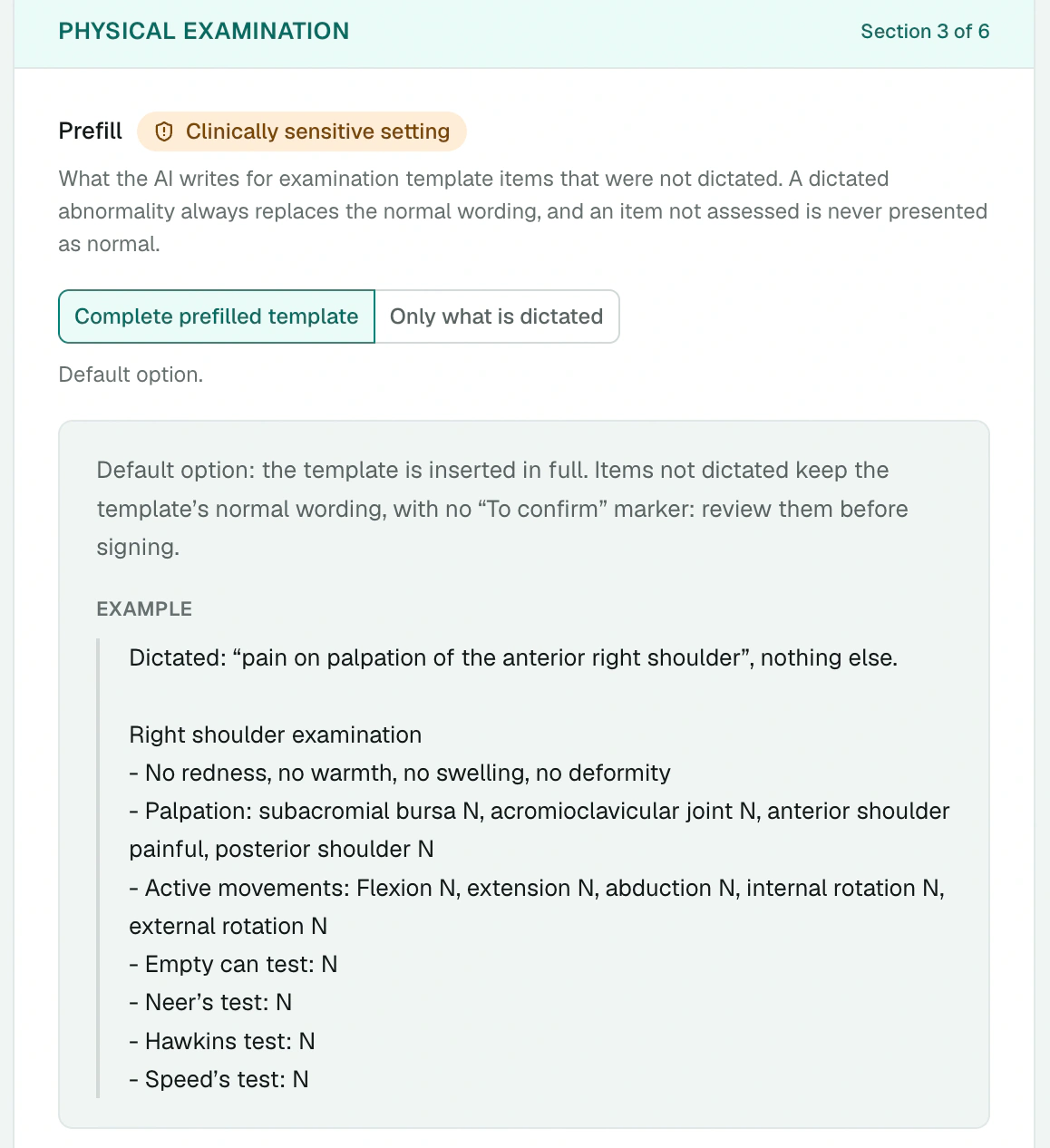
For single-complaint and multiple-complaint visits, and for other scribes depending on your profession, you can also tune each section: the concision of the history, the current problem or the plan, the prefill of the physical examination and the reasoning of the diagnostic impression. Clinically sensitive settings are marked Sensitive and their effect is explained.
For single-complaint and multiple-complaint visits, Prefill in PROCEDURES offers Complete template (default) or Captured elements only. The complete template also prefills uncaptured consent, steps, tolerance and instructions: review and correct this draft before using it. Known information replaces default wording; missing values are not invented. A planned procedure stays in the plan. This choice is independent of examination prefill.
Your free-text instructions
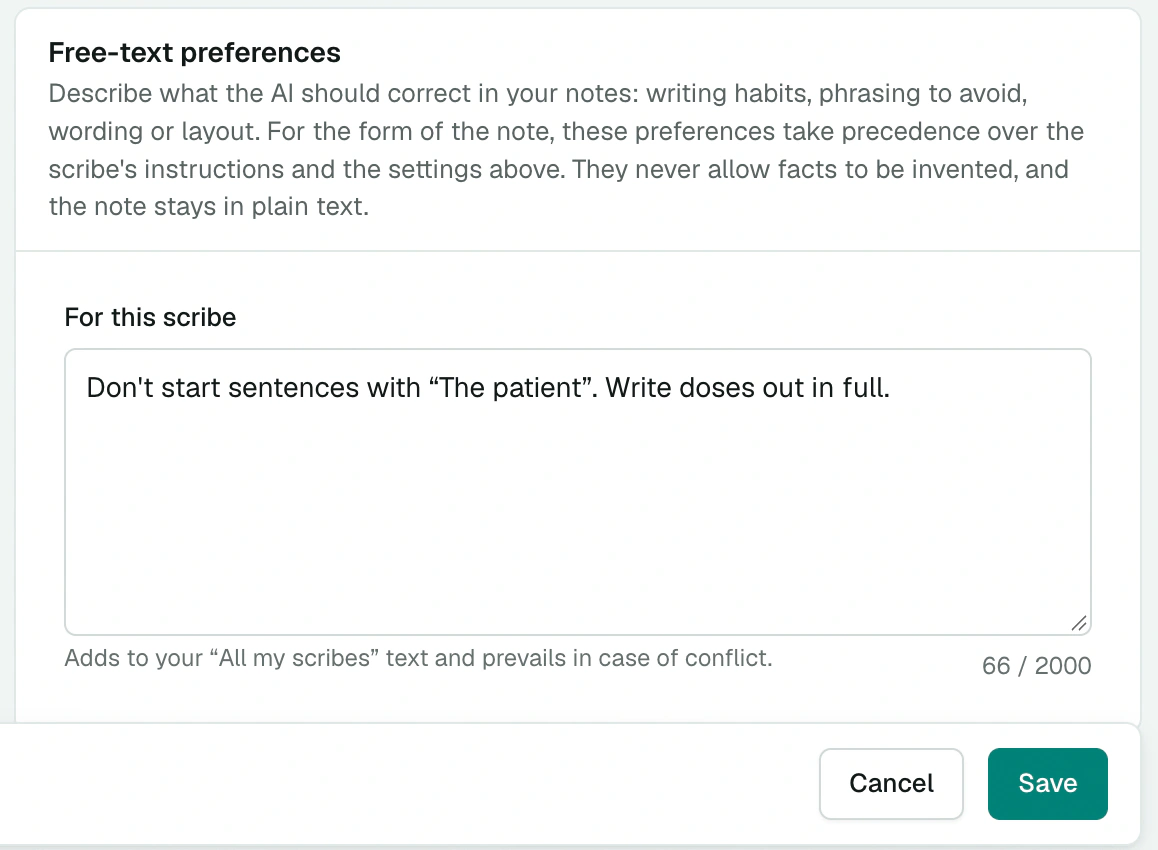
Describe what the Scribe should correct in your notes: phrasing to avoid, wording, layout. For example: "Don't start sentences with The patient. Write doses out in full." Up to 2,000 characters for all your scribes, and as many for each one.
When they apply
Your preferences apply to the next notes, as soon as they're saved. Existing notes don't change: regenerate a note to apply your new preferences to it.
Always on
Symptoms, results, treatments and consents are never made up, whatever your settings, and the note stays in plain text, ready to paste into your EMR.
Keyboard shortcuts
The screen can be used with the keyboard: ⌘ K to search for a setting, ↑ ↓ to move from one setting to another, 1 to 9 to choose an option, ⌘ S to save. ? shows the full list.