 MedAssistant
Forms page
The forms the AI fills, the MedAssistant catalog, your organization's forms and the forms to hide from your menu.
The Forms page, in the Configuration section of the sidebar, gathers the forms the AI can fill. They are the ones that appear under Fill with AI, in the PDF form menu of each document.
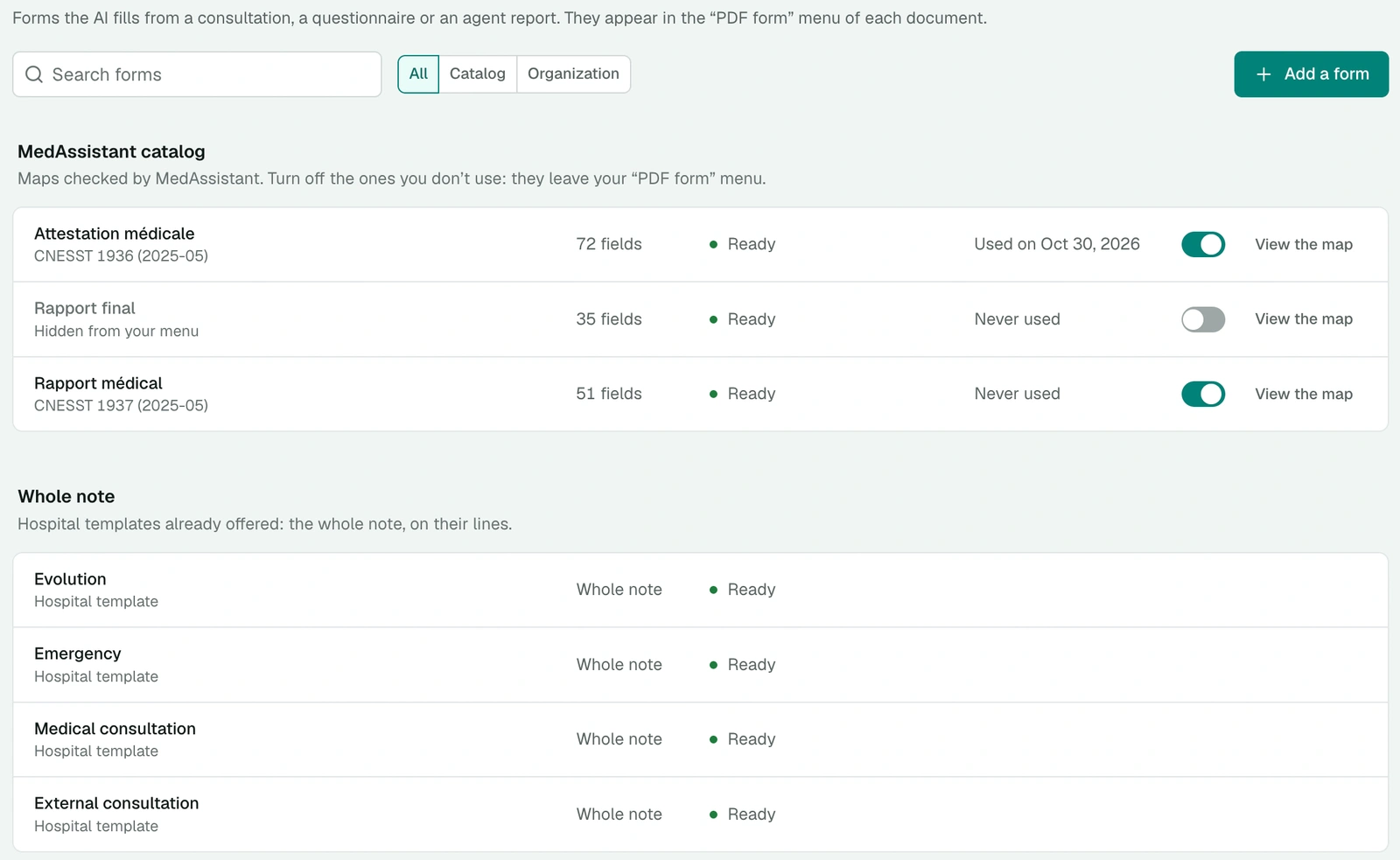
The page has three sections:
- MedAssistant catalog: official forms whose field map was checked by MedAssistant, offered to every organization or according to its profession. CNESST certificates and reports are among them.
- Organization forms: the ones your organization added. See Add a form.
- Hospital templates: the hospital templates that carry the whole note, already offered on consultations.
The search and the All, Catalog and Organization filters narrow the list. Each row shows the form's number of fields, its status and the date it was last used in your organization. View the map shows where each value goes on the form.
Hide a catalog form
The catalog grows over time, and not every form is useful to every professional. Turn off a catalog form's switch to remove it from your PDF form menu. Its row turns grey, with the mention Hidden from your menu. Turn the switch back on to bring it back.
- The choice applies to you only, in all your organizations. Your colleagues keep theirs.
- New catalog forms are visible by default.
- Forms already filled stay with their document, even if you hide their form.
- Organization forms can't be hidden: the person who manages them can archive them.
When you have hidden forms, the PDF form menu says so at the bottom of Fill with AI, for example 2 hidden forms · Manage. Manage opens this page.

A form's status
| Status | What it means |
|---|---|
| Ready | Published: the form is offered in the menu |
| Preparing | The PDF is checked before mapping |
| Mapping in progress | The AI places the fields; a few minutes, the page updates by itself |
| Ready to publish | The AI has no question: review the map, then publish it |
| Questions to settle | The AI has questions to settle before publishing |
| Being reviewed | Seen by a colleague who doesn't manage the form: it isn't offered yet |
| Refused or Failed | The reason shows under the status; replace the PDF to try again |
While a new version is reviewed, the published version stays offered in the menu.
Manage the organization's forms
The person who added a form and the organization's managers manage it. The ⋯ menu of its row offers:
- Replace the PDF: send a new edition of the form, which goes through mapping and review again;
- Archive: the form leaves the page and the PDF form menu. Forms already filled stay with their document.
Catalog forms can't be changed from your organization. Missing an official form? Write to us at [email protected].