 MedAssistant
Add a form
Send a blank PDF form, let the AI place its fields, review its map, then publish it.
Does your organization use a form that isn't in the catalog, like an insurer's or your hospital's? Add it. The AI draws its map: where each value goes and where it comes from. You review this map, then publish it; the form then appears in the PDF form menu of the organization's professionals.
Any professional of the organization can add a form. They then manage it, with the organization's managers.
Send the blank PDF
In the Forms page, click Add a form.
Drop the blank PDF, or click to choose it: 10 pages and 10 MB at most.
Enter the Form name, the one shown in the menu, and the Form language.
Click Start mapping. It takes a few minutes, and the page updates when it ends.
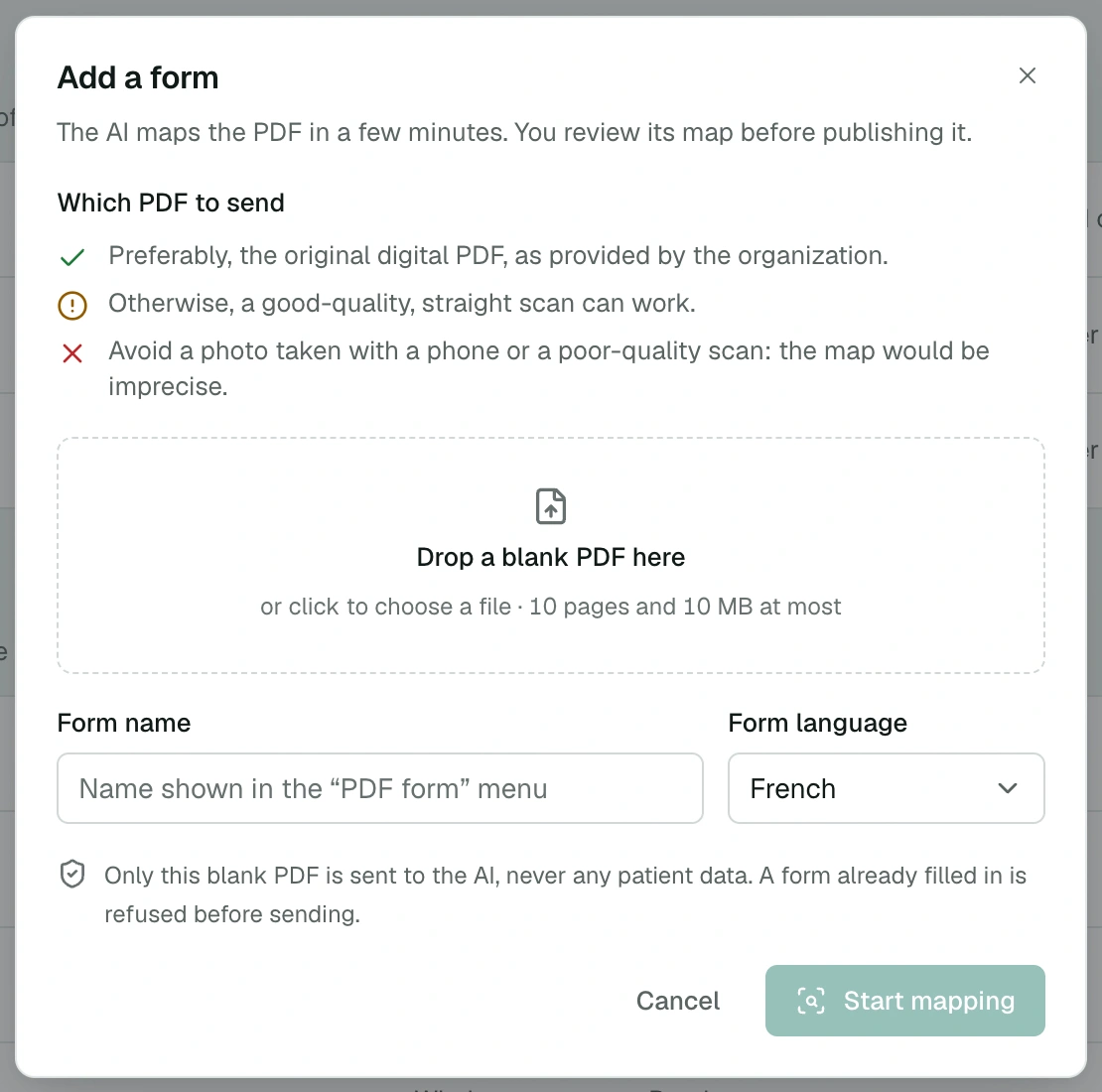
Which PDF to send:
- preferably, the original digital PDF, as provided by the organization;
- otherwise, a good-quality, straight scan;
- never a photo taken with a phone: the map would be imprecise.
No patient data
Only the blank PDF is sent to the AI, never any patient data. A form that already contains answers is refused before sending.
A refused PDF or a failed mapping shows its reason in the Forms page, for example a PDF already filled in or a page scanned too crooked. Replace the PDF, in the row's ⋯ menu, lets you try again.
Review the map
When mapping is done, the form's row shows Ready to publish or Questions to settle. Click Review to open the map.
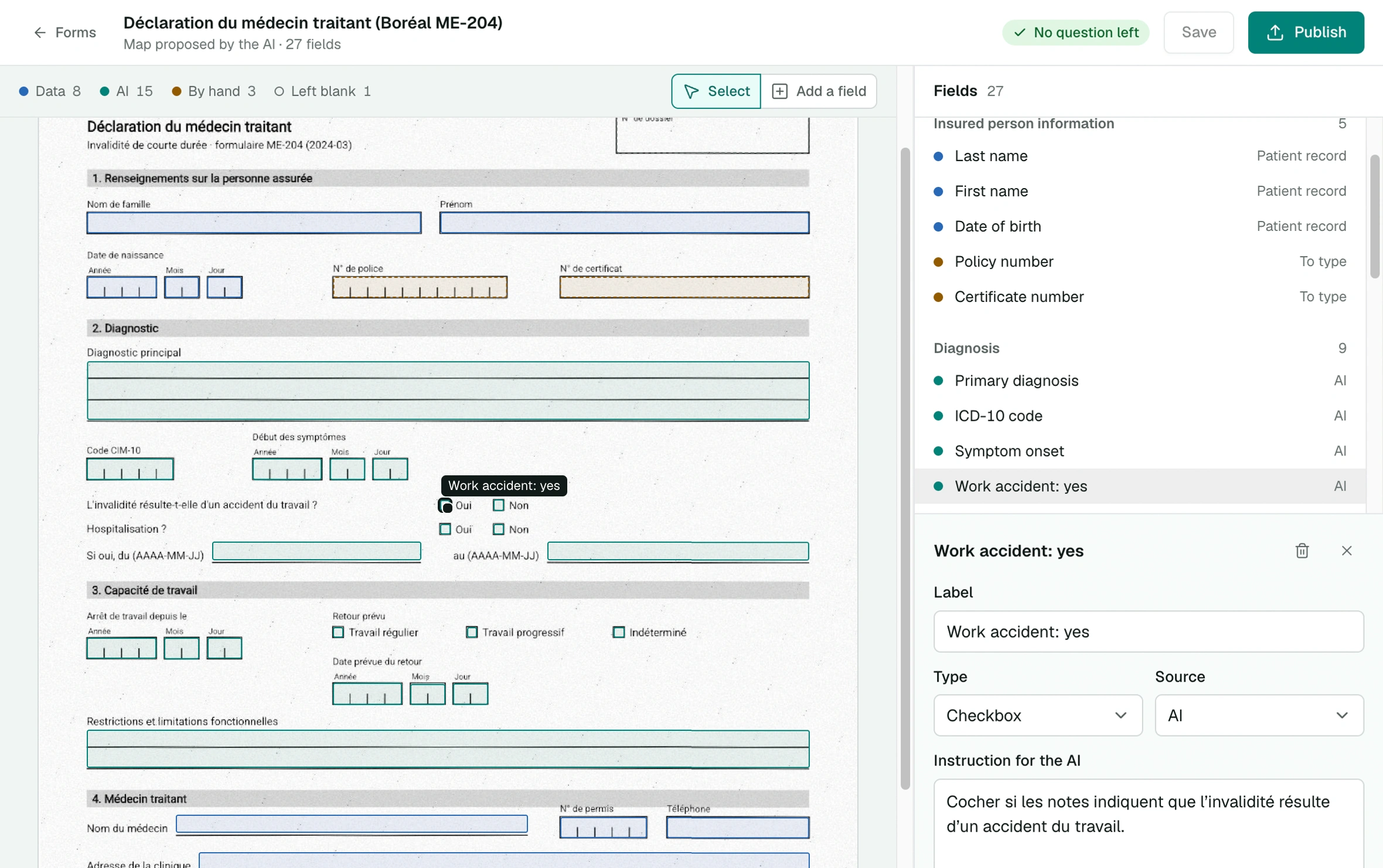
The form's page shows each field in place, coloured by its source: Data, AI, By hand or Left blank. Click a field, on the page or in the Fields list, to see and correct:
- its label and its Type: text, multiline text, date, checkbox or signature;
- its Source: patient record, professional profile, clinic, document, remembered value, to type, AI, by hand or left blank;
- the Instruction for the AI of a field the AI fills, like "Date of the accident; empty if not mentioned.".
Drag a field to move or resize it; the arrow keys move it by 1 pt, or by 10 pt with Shift. Add a field places a new field where you click on the page. A field already defined in the PDF keeps its position.
Settle the AI's questions
When the AI hesitates, it asks a question on the field concerned, for example about a box whose meaning is ambiguous. The header counts the questions to settle, and Next goes to the next one. Correct the field if needed, then click Settled.
Publish
Click Save to keep your corrections, then Publish. Publishing waits until every question is settled and every change saved. The form is offered right away in the PDF form menu of the organization's professionals.
Then fill the form once from a test consultation, and check the alignment when printed before using it for your patients.