 MedAssistant
Fill in a form with AI
The AI fills in a PDF form (CNESST, insurer, hospital) from a consultation, a questionnaire or an agent report.
From a consultation, a questionnaire report or an agent report, the AI fills in a PDF form: a CNESST medical certificate, an insurer's form or a form of your organization. It takes the data from the record and writes the other answers from the document, quoting the excerpt that supports each value. You review, correct if needed, then print or download the form.
Start the fill
Open the report, then the PDF form menu.
Under Fill with AI, choose the form. Forms from the MedAssistant catalog show their edition; your organization's show Organization form.
The fill workspace opens. Fields taken from the record are already there; the AI fills the others in one to three minutes. You can close: the fill continues.
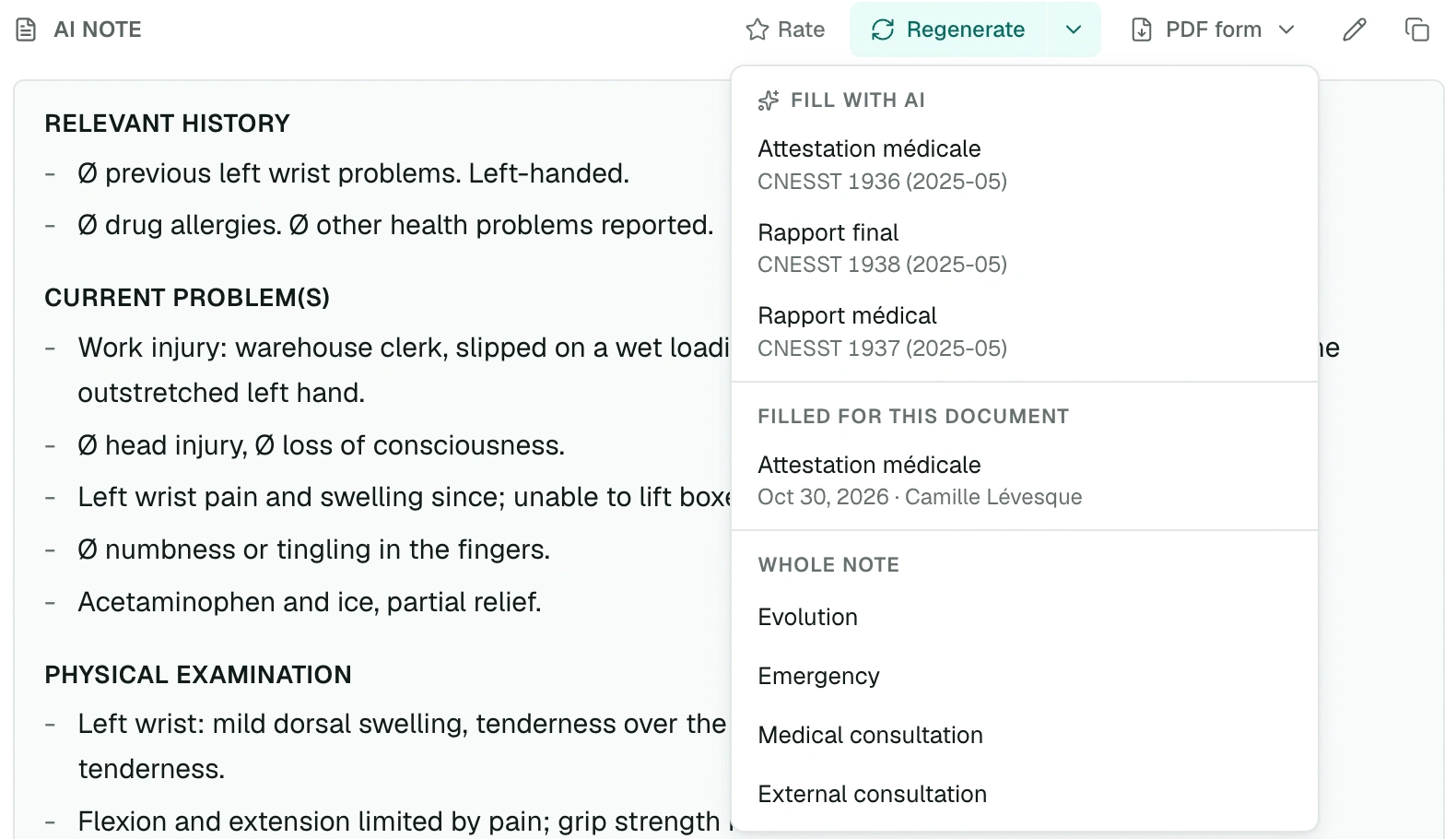
The same menu lists, under Filled for this document, the forms already filled from this report. Click one to open it again. Beyond three, All fills shows them all.
The forms in the menu are managed in the Forms page, where you can also hide the catalog forms you don't use.
Where the values come from
| Source | Examples |
|---|---|
| Patient record | Name, date of birth, sex, health insurance number |
| Your profile | Full name, initials, permit number |
| Clinic | Name, address and phone number of the consultation location |
| Document | Visit date, fill date |
| AI | Diagnosis, event date, checkboxes, from the document |
| Remembered value | Group number, fax: typed once, offered on the next forms |
| To type | What the record doesn't contain, like the health card expiry date |
The AI reads the document you fill from: the note, additional details and transcription of a consultation, the answers and summary of a questionnaire, the summary and conversation of an agent report. It only fills what the document says; the rest stays empty.
Your permit number comes from Settings › Personal information › Permit number. Add it before your first form.
Review the form
The fill workspace shows, on the left, a preview of the form as it will print and, on the right, the list of fields, grouped by section of the form.
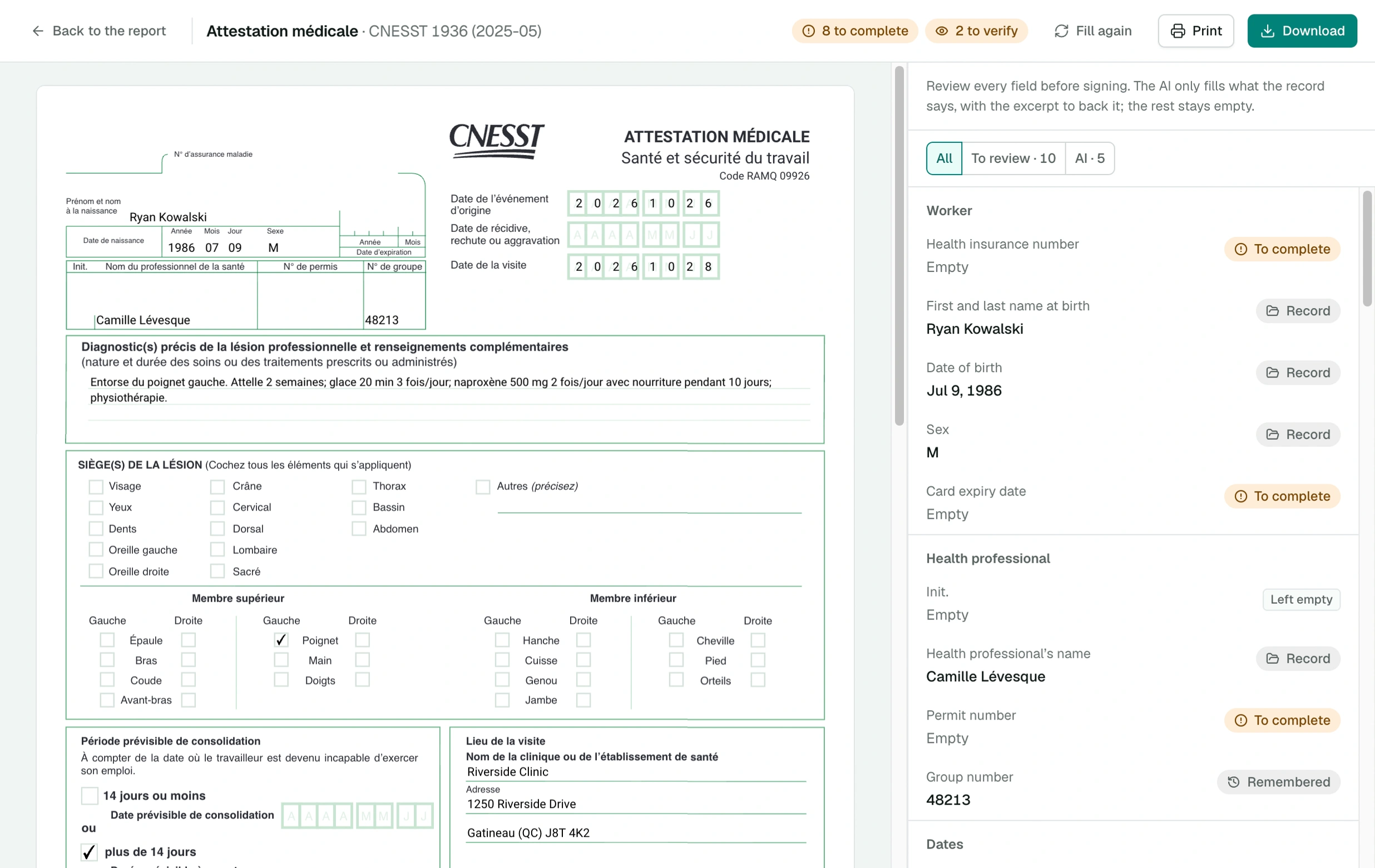
The header sums up what remains: to complete, to verify, or Ready to print, and Sign by hand when the form has a signature. Each field shows its status:
| Status | What it means |
|---|---|
| To complete | The field is empty: the record doesn't contain the answer |
| To verify | The AI has a reservation about this value; its reason shows with it |
| AI | Value written by the AI, with the excerpt that supports it |
| Record | Value taken from the patient record, your profile or the clinic |
| Remembered | Value you already typed for this form |
| Edited | Value you changed |
| By hand | To fill after printing, like the signature |
| Left empty | Area nobody fills, like a space reserved for the agency |
The All, To review and AI filters narrow the list. To review groups the fields to complete and to verify.
Click a field in the list to open it: Where the value comes from shows the excerpt of the document that supports an AI value, with its source and date.
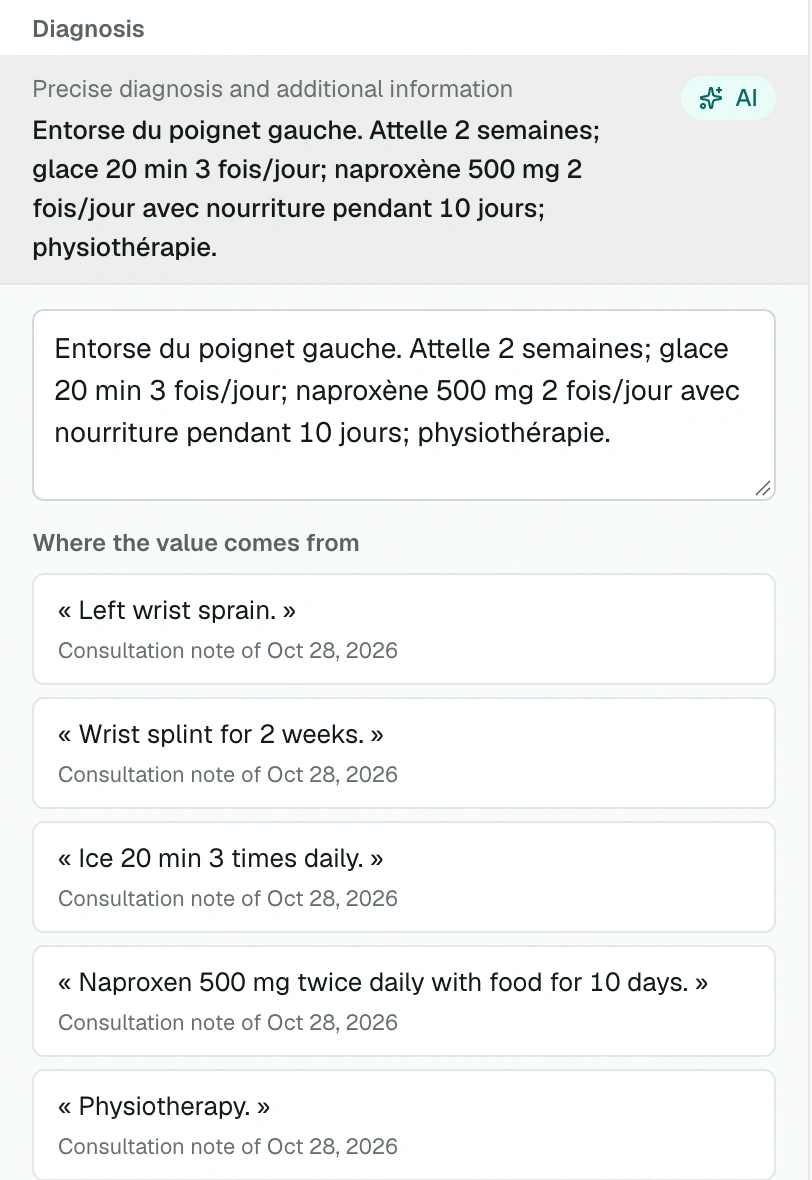
Review every field before signing. The AI only fills what the record says, with the excerpt to back it; you remain responsible for the form you sign.
Correct a value
- Change the value in the list, or click the field in the preview.
- A checkbox is checked or unchecked with one click, right in the preview.
- Clear erases a field's value.
The preview follows your changes even before you save them. The header counts the unsaved changes: Save (or ⌘ S) keeps them, Discard goes back to the last saved version. A value too long for its box is refused: shorten it.
A value typed in a "remembered value" field, like a group number, will be offered on your next fills of this form.
Print or download
- Print opens the print window with the filled form.
- Download saves the PDF; its fields stay editable in a PDF reader.
- Fill again restarts the fill from the document, for example after a correction to the note.
Save or discard your changes before printing or downloading. Then sign the By hand fields.
Only the professional who started the fill can edit it; colleagues see it read-only.
Whole-note templates
On a consultation, the PDF form menu also offers Blank document as well as, under Hospital templates, the forms that carry the whole note: Evolution, Emergency, Medical consultation and External consultation. See Fill in a PDF form.