 MedAssistant
Fill in at the clinic
Fill in the questionnaire at the desk with the patient, or let them answer on their own on a tablet.
Not every patient answers before their visit. Three ways to collect their answers on site:
- at the desk, with the patient, by a professional or an assistant;
- on a tablet in the waiting room, in self-service;
- with a QR code displayed at reception, on the patient's phone (see Send a questionnaire).
At the desk, with the patient
Choose Form in the sidebar (Professional and Assistant roles).
Choose the questionnaire, if there are several.
Fill in the patient's identification and, if needed, the professional being consulted (I don't know is accepted).
Choose the reason for consultation, then answer the questions.
Confirm the submission. The professional returns to their inbox, where the report is waiting; the assistant goes straight to identifying the next patient.
Every question on a single page
At the desk, the questions appear on a single page, grouped by section.
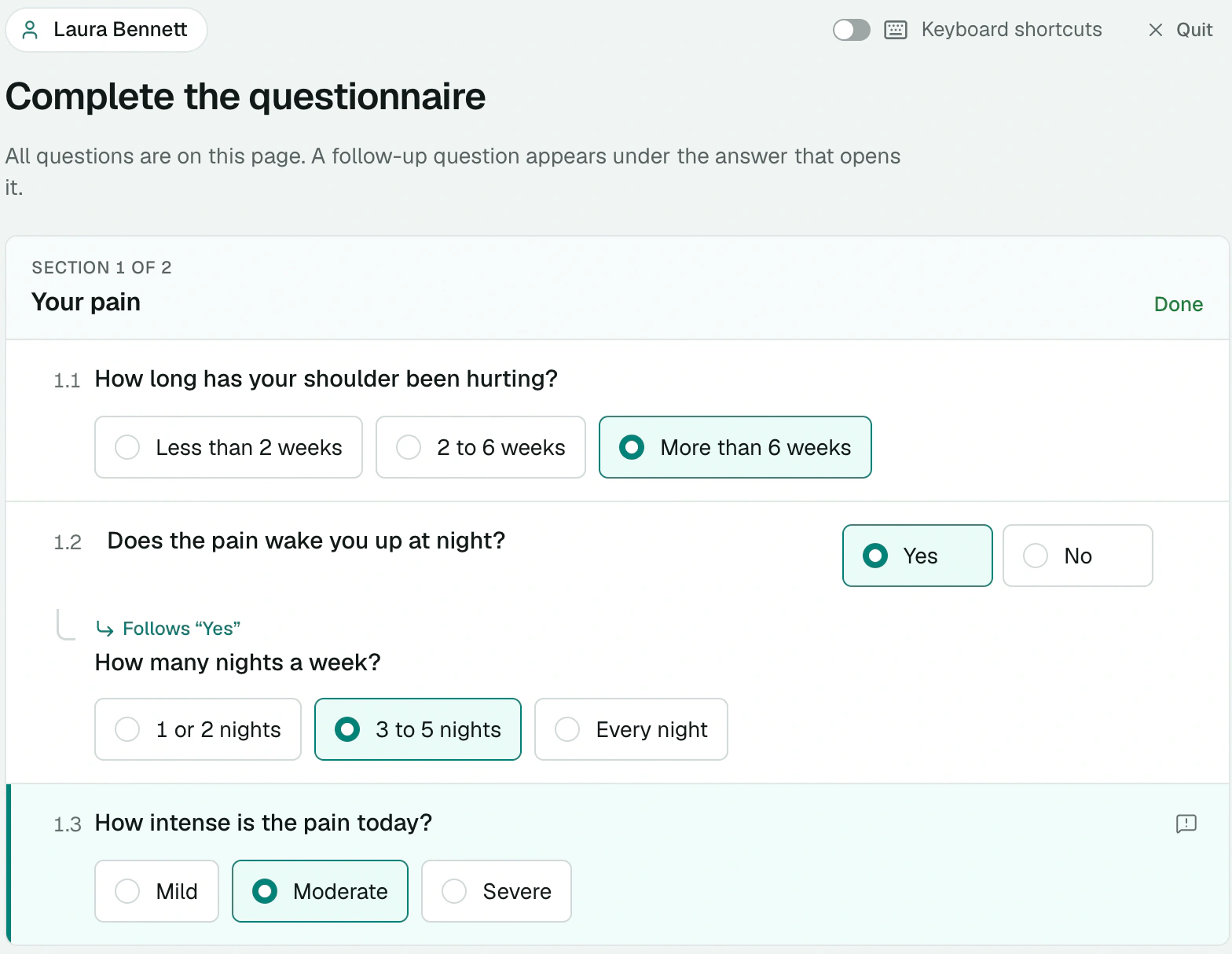
- Each section is a card that tracks its progress: "2 of 5", then Done.
- A follow-up question appears right under the answer that opens it.
- On a large screen, the Sections column shows where you are. Click a section to jump to its first unanswered question.
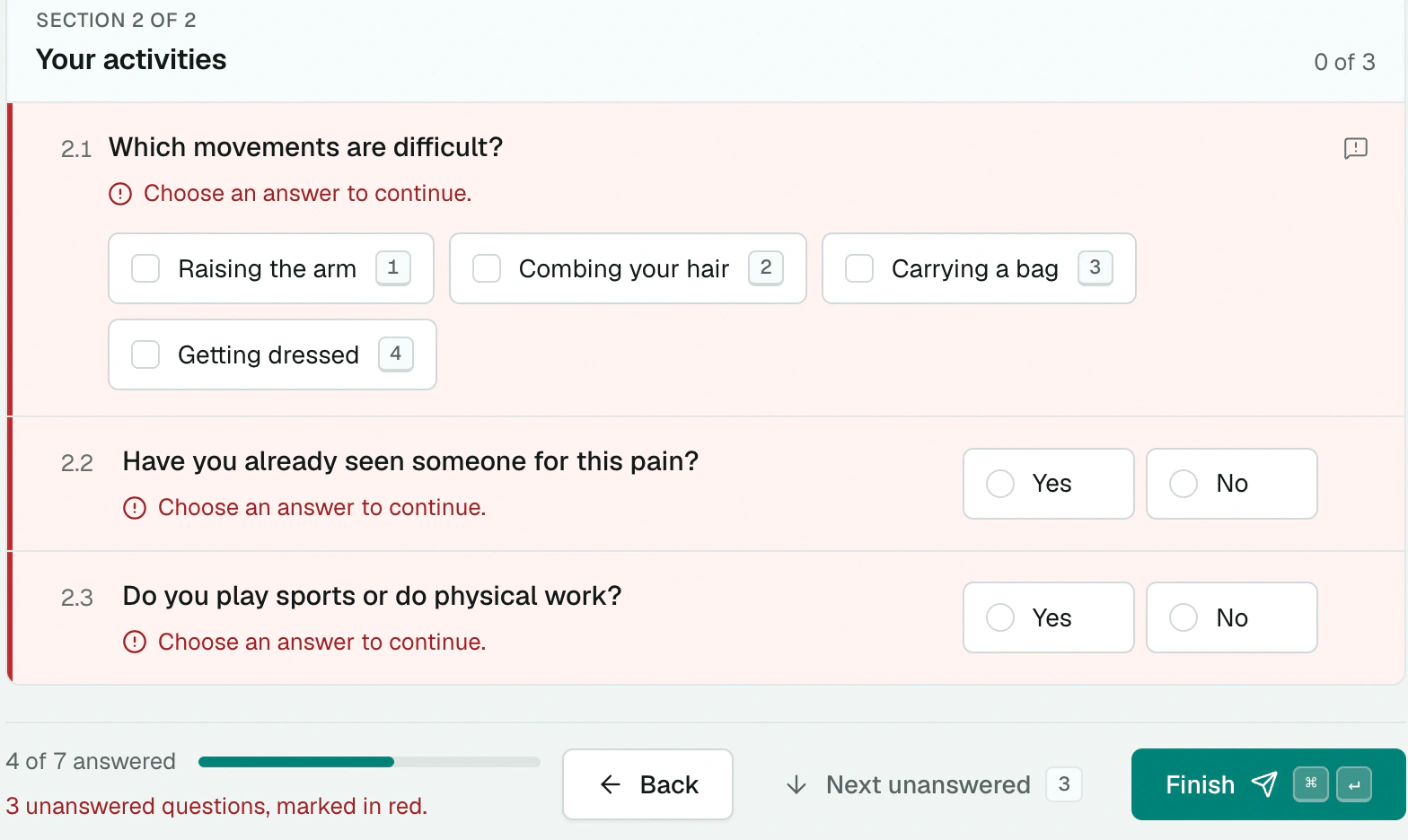
- The bottom bar counts the answers and offers Next unanswered to go straight to what's missing.
Finish checks the whole page at once: unanswered questions are marked in red and the cursor moves to the first one. Once everything is filled in, the bottom bar shows Everything is answered.
From the keyboard
The cursor is already on the first question, and the page scrolls on its own.
| Key | Action |
|---|---|
| Tab, Enter or ↓ | Next question |
| Shift + Tab or ↑ | Previous question |
| ← and → | Move between a question's choices |
| Shift + Enter | New line in a free-text answer |
| ⌘ + Enter (Mac), Ctrl + Enter (Windows) | Finish |
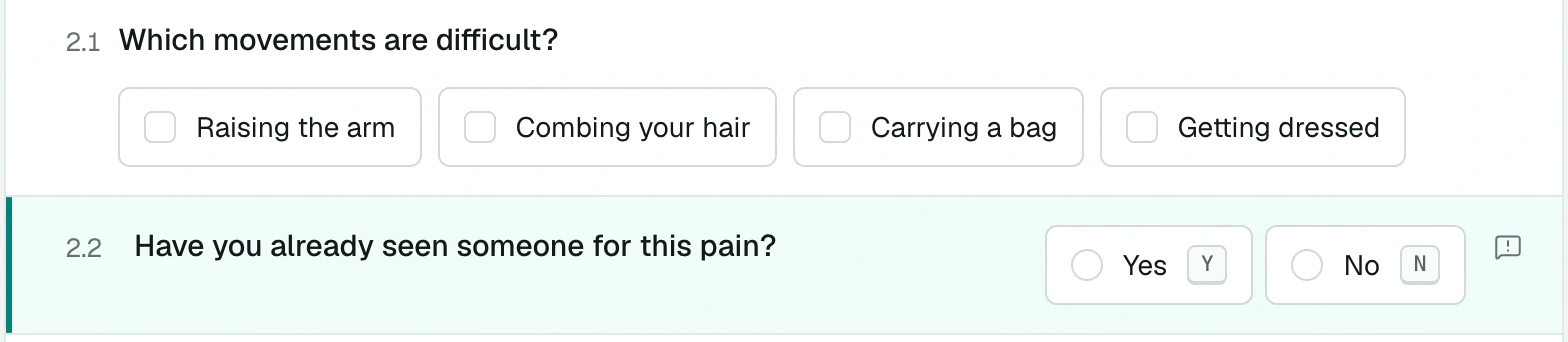
To go even faster, turn on Keyboard shortcuts at the top right: Y or N answers a Yes/No question, and 1 to 9 picks the answer with that number. This setting is remembered in your browser.
Flag a question
Is a question badly worded, or is an answer missing? Feedback on this question sends your comment, up to 280 characters, to the team that manages the questionnaire.
On a tablet in the waiting room
The Tablet role turns a clinic device into a questionnaire kiosk. The patient answers on their own, or with help from your staff, without seeing any other part of the application.
The manager adds a Tablet seat, then a user with this role, whose email address is reserved for the device. See Roles and seats.
Sign in on the tablet with this account and choose the Tablet role.
The patient fills in the questionnaire step by step. After submission, the message The questionnaire will restart for the next patient. appears and the questionnaire starts over.
- An identification that is started and then abandoned is erased after 30 minutes.
- The tablet session is renewed regularly; a warning appears beforehand, and the reconnection never happens while a patient is answering.
- A staff-only menu lets you sign out of or reload the tablet. Ask our team how to use it.
A dedicated tablet
Use the tablet in kiosk mode, on a device reserved for this purpose and in a supervised area. Do not use it for anything else.
To have patients talk with the pre-visit agent on a tablet, see Pre-visit agent.