 MedAssistant
Agenda and appointments
Create, edit and cancel appointments; block time; follow the patient's questionnaire.
The Agenda shows a Day, Week or Month view (week by default; as a list on a phone). Today and the arrows change the period. Each appointment takes its service's colour, shown in Service colours.
Create an appointment
Choose New appointment, or click an empty slot in the agenda: the time is filled in.
Choose the Service, Date, Time and, if needed, the Duration (min).
Enter the patient: First name, Last name, Date of birth, Email language and, if you have them, their Email and Phone (10-digit North American cell number).
If needed, add the Appointment address (optional) and a Note, visible to you only.
Check Email a confirmation to the patient (if a number is entered, the box reads Email and text a confirmation to the patient and the confirmation also goes out by text message). If the service has a questionnaire, check Include the service's questionnaire and send reminders until it is completed.
You can add an appointment outside your working hours. However, an appointment can't overlap another appointment or blocked time. You also receive a confirmation by email.
Appointment details
Click an appointment to open its details.
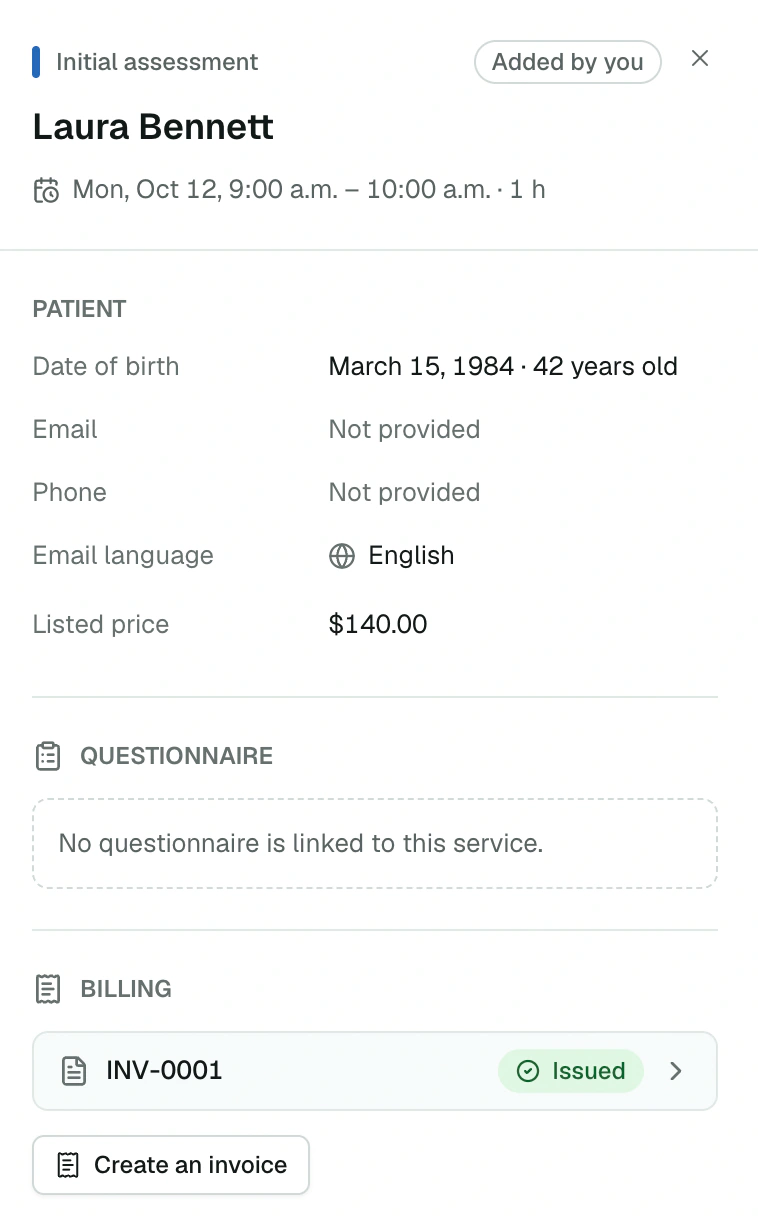
- Origin: Added by you or Booked online; the patient's contact information and age; listed price.
- Questionnaire: Pending or Completed, the number of reminders sent and the next one. Actions: Open report, Copy link, Resend by email or Send questionnaire.
- Billing: the appointment's invoices and Create an invoice. See Invoices.
- Edit: change the time, duration or address, and notify the patient of the new time by email.
- Cancel appointment: the time slot becomes available again and questionnaire reminders stop. Check Notify the patient by email to let them know. A past appointment can no longer be cancelled.
Block time
Block time sets aside an absence: vacation, training, meeting.
- Reason (optional), up to 120 characters.
- Whole days, or From / To with times.
No one can book online during that time. Appointments already booked don't move. Unblock this time removes the block.
Messages sent
| Message | To the patient | To you |
|---|---|---|
| Confirmation | Email, and text message if a number is entered | |
| Time change | Email (change made by the patient) | |
| Cancellation | Email, if you check it | |
| Questionnaire reminder |
No automatic reminder of the appointment itself is sent.