 MedAssistant
Invoices
Set up your billing profile, issue an invoice with GST and QST, and send it by email.
The calendar issues invoices for your patients, with or without an appointment. An invoice is a document to hand over or send: it doesn't include online payment.
1. Complete your billing profile
Before your first invoice, open the Invoices tab and complete the Billing profile.
| Field | Details |
|---|---|
| Name on the invoice, Business address | Required |
| Professional title, order or association, licence number | Optional, shown on the invoice |
| Needed to send invoices by email; patients' replies arrive there | |
| Phone | Optional |
| GST and QST numbers | Together, if you're registered. Formats: 123456789 RT0001 and 1234567890 TQ0001 |
| Notes at the bottom of invoices | Payment terms, thank-you notes… |
| Prefix and Next number | Your numbering: up to 12 characters for the prefix; the number can't go backwards |
| Logo | The organization's logo, added by the manager in Organization › Information |
2. Create the invoice
- From an appointment: in its details, Create an invoice. The patient, date and service are already filled in.
- Without an appointment: New invoice in the Invoices tab.
Fill in the client, the Date of service and the Invoice language, then the lines: Add a service brings in one of your services and its price. An invoice has 1 to 20 lines. Check Taxable for lines subject to taxes; add a note if needed.
3. Review and issue
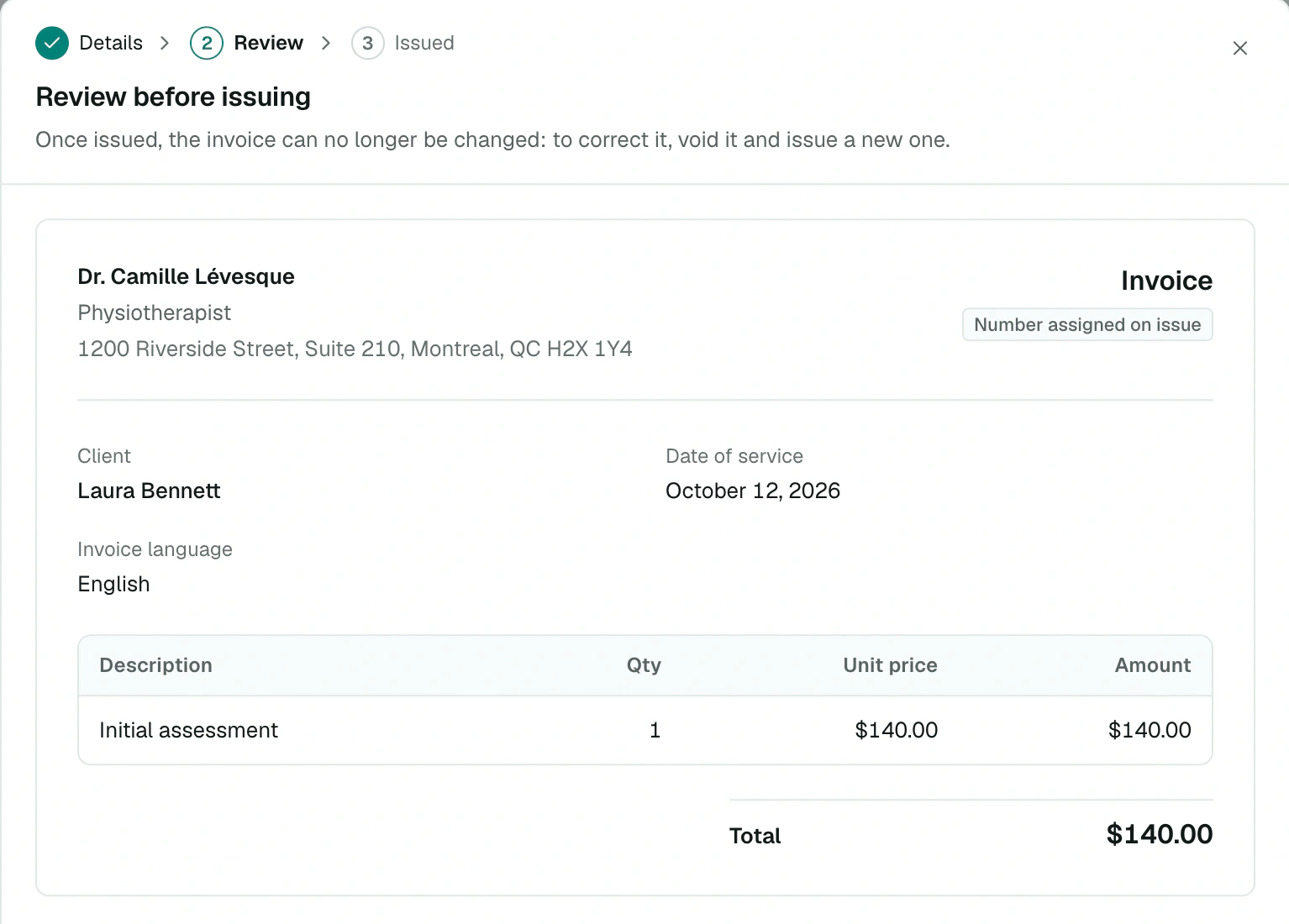
The invoice goes through three steps: Details, Review, then Issued. The number is assigned when the invoice is issued.
GST (5%) and QST (9.975%) are calculated only on taxable lines. A taxable line requires your GST and QST numbers in the profile.
4. Deliver the invoice
- Download the PDF.
- Send by email: the PDF is attached, with a subject and message from your template. The sending history appears on the invoice.
The Sending email template is set in each language, with variables (first name, last name, number, total, date of service, your name on the invoice). Restore the base template goes back to the original text.
Correct an invoice
An issued invoice can no longer be edited. To correct it, choose Void the invoice, give the reason, then issue a new one. The voided invoice keeps its number, is marked Void and can no longer be sent.
Track your invoices
The Invoices tab groups invoices by month, with the number of Issued invoices, the Total issued and the Void ones. Filter by All, Issued or Void.